

Create Required Metafields
Step
- Login to your Shopify store, click to Settings
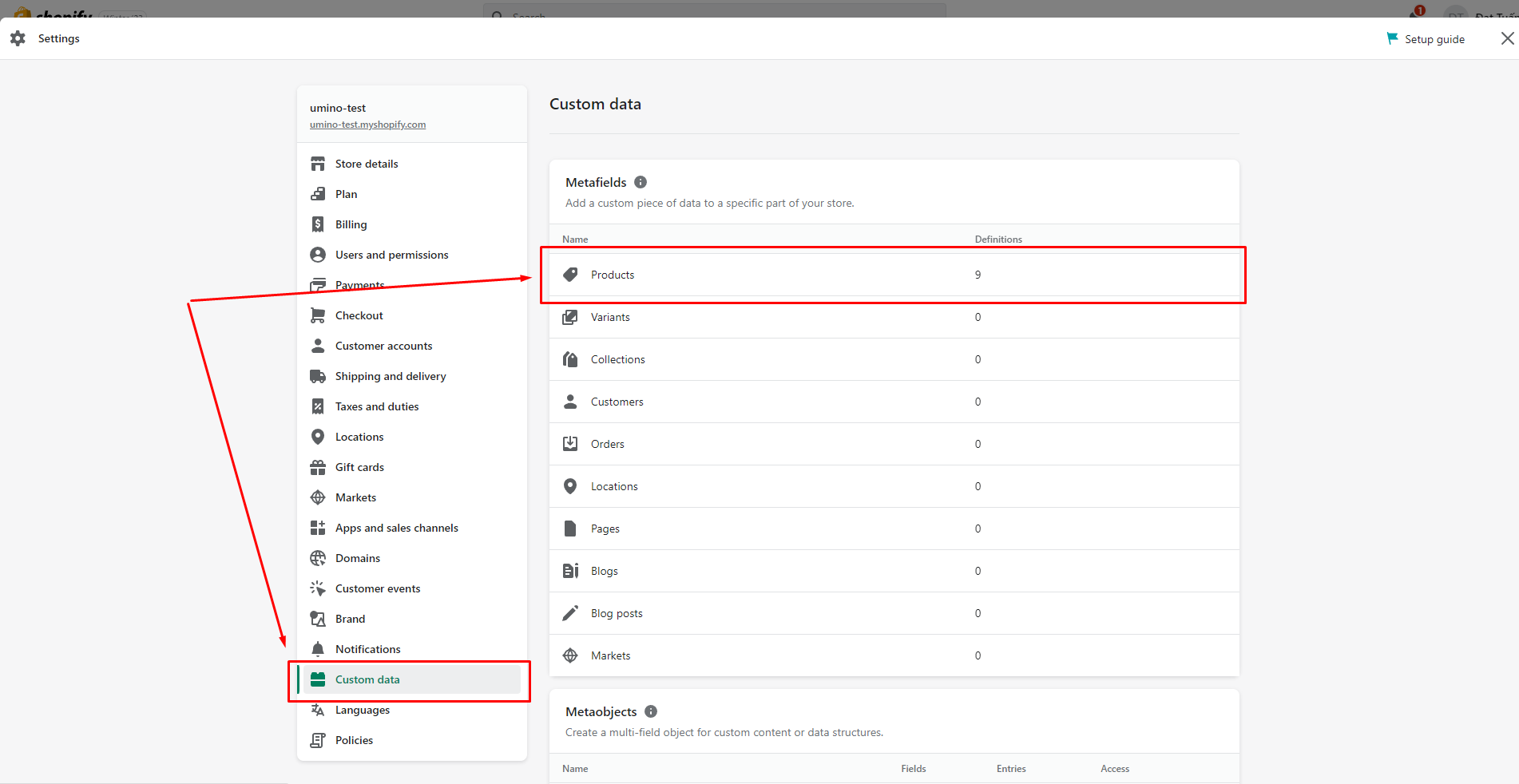
- Click to Custom data and select Products
- Add 3 metafields as follow: - Product Bought Together - Short Description - Countdown Timer
.png)
.png)
1. Product Bought Together
- Name: Product Bought Together
- Namespace and key: bls.bought_together
- Content type: Product - List of products
.png)
2. Short Description
- Name: Short Description
- Namespace and key: bls.short_description
- Content type: Multi-line text
.png)
3. Countdown Timer
- Name: Countdown Timer
- Namespace and key: bls.countdown_timer
- Content type: Date and time - One value
.png)
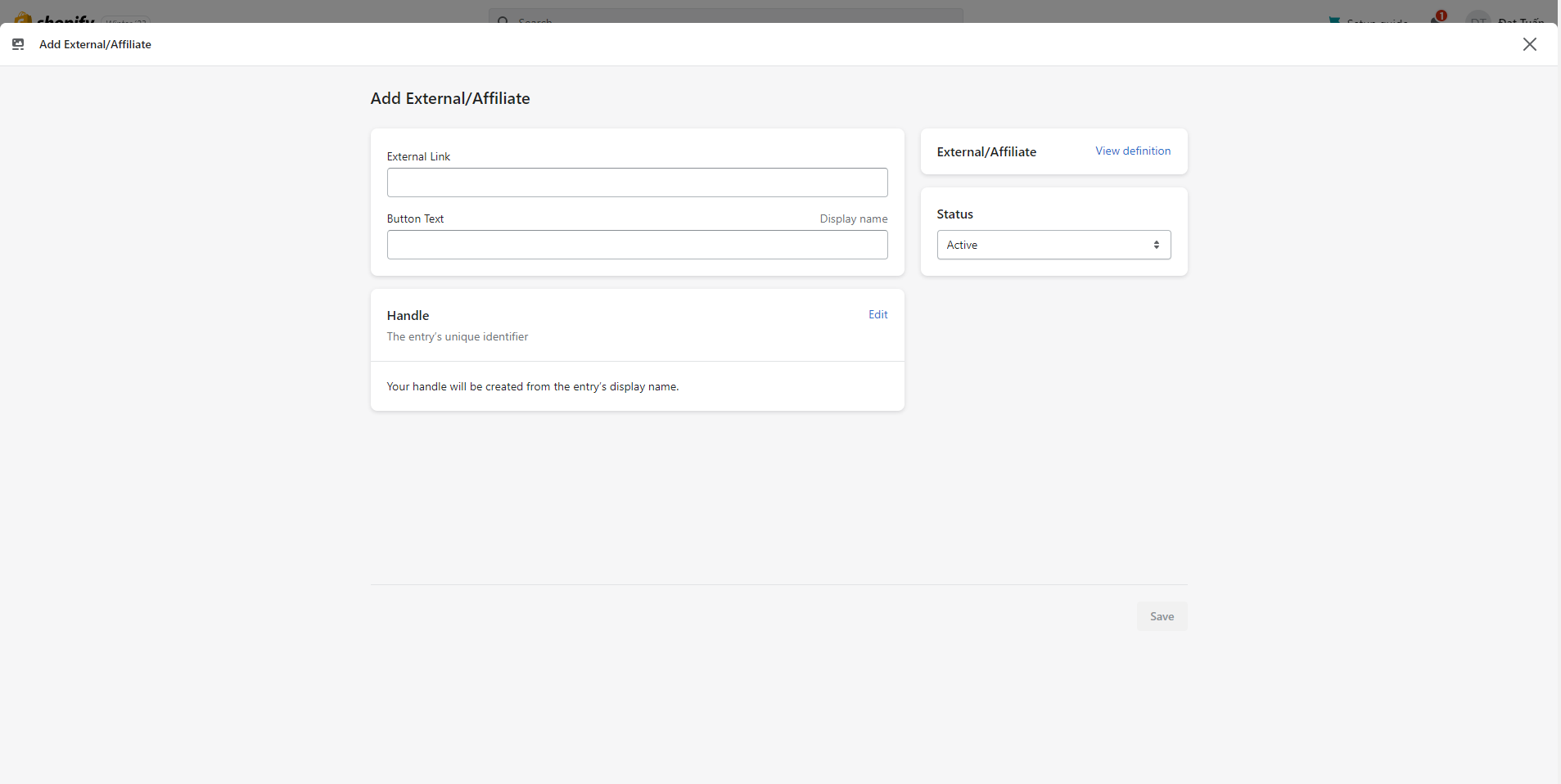
4. External/Affiliate
Step
- Login to your Shopify store, click to Settings
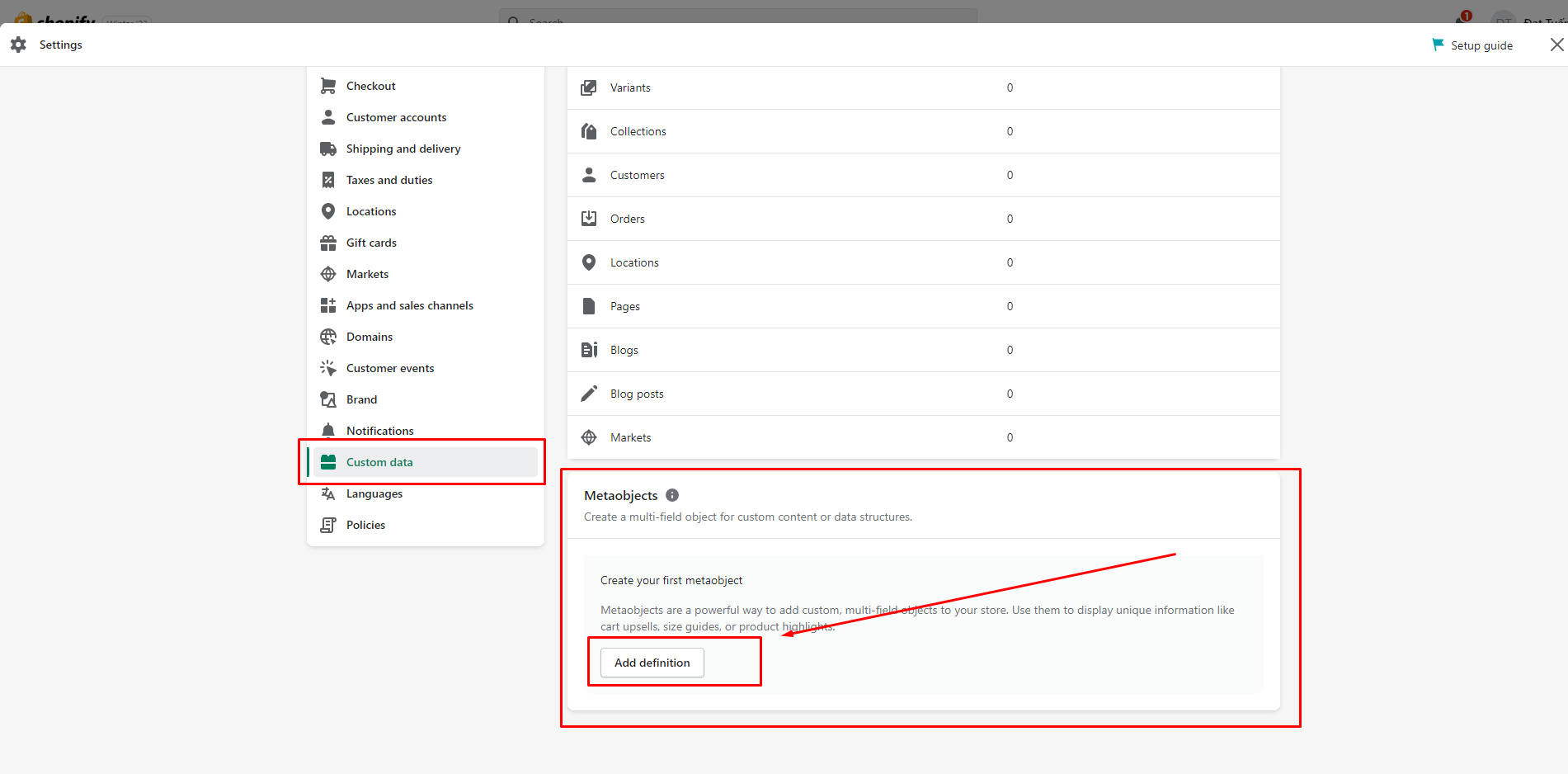
- Click to Custom data -> Metaobjects and Click Add definition
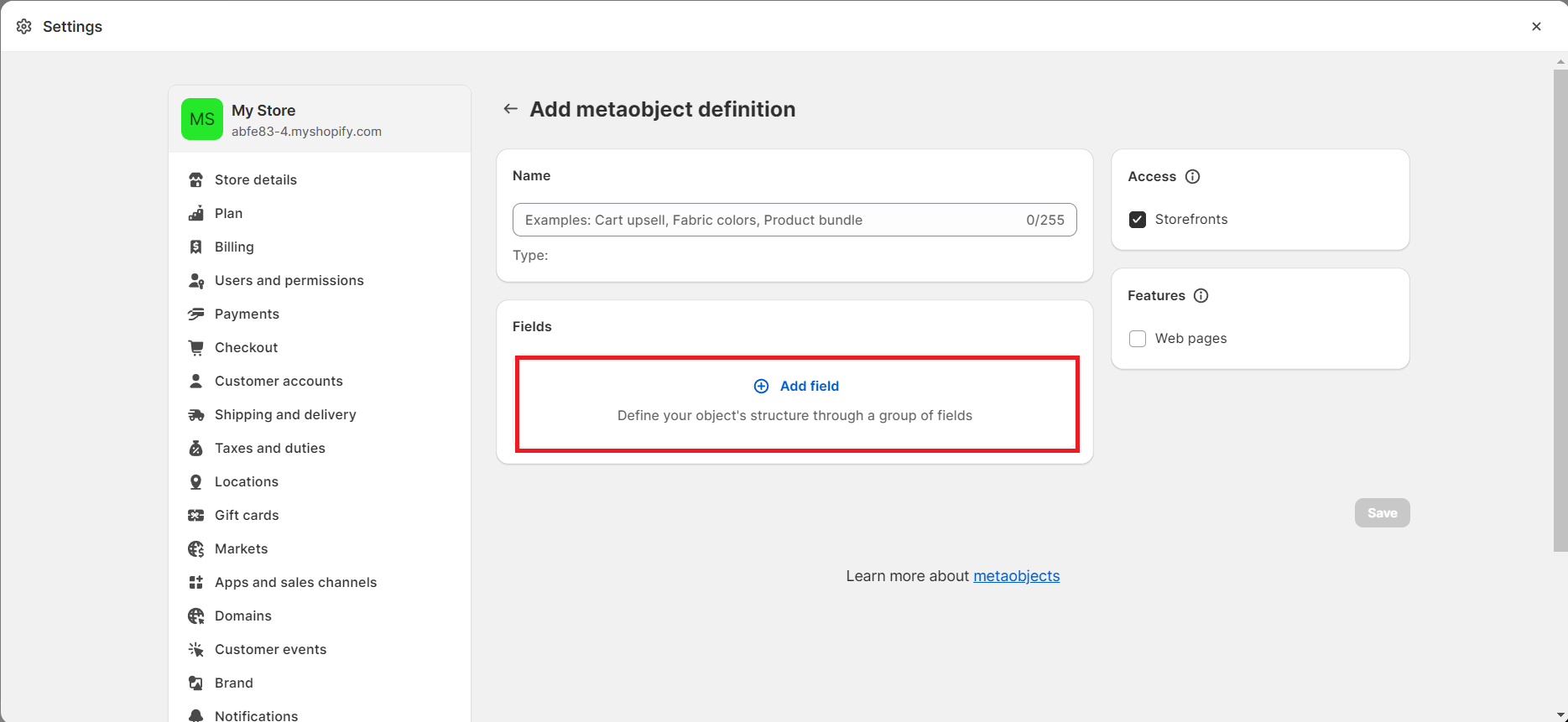
- Add metaobject definition with 2 fields as bellow: - Name: External/Affiliate
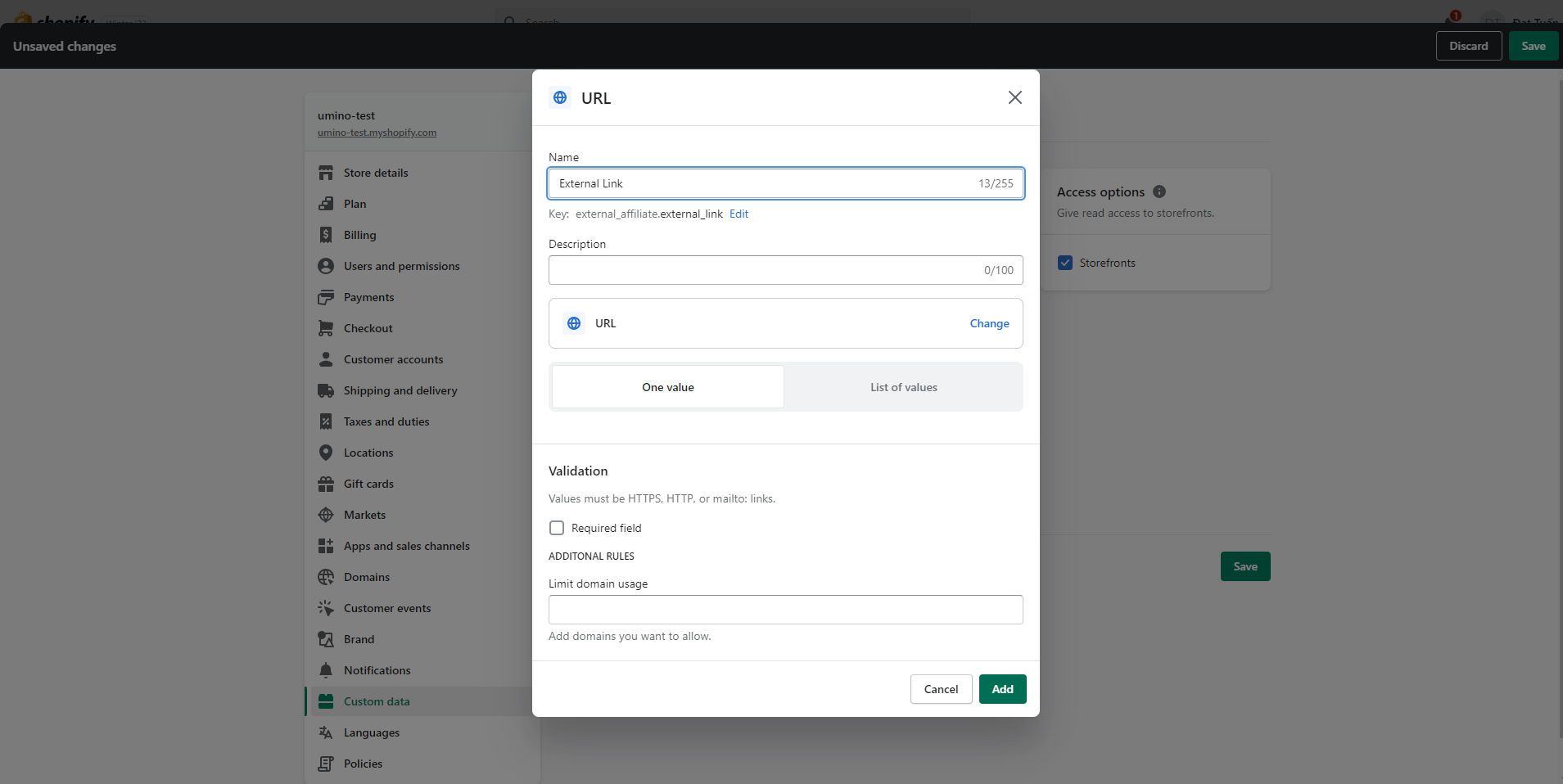
- Field 1:
- Type: URL
- Name: External Link
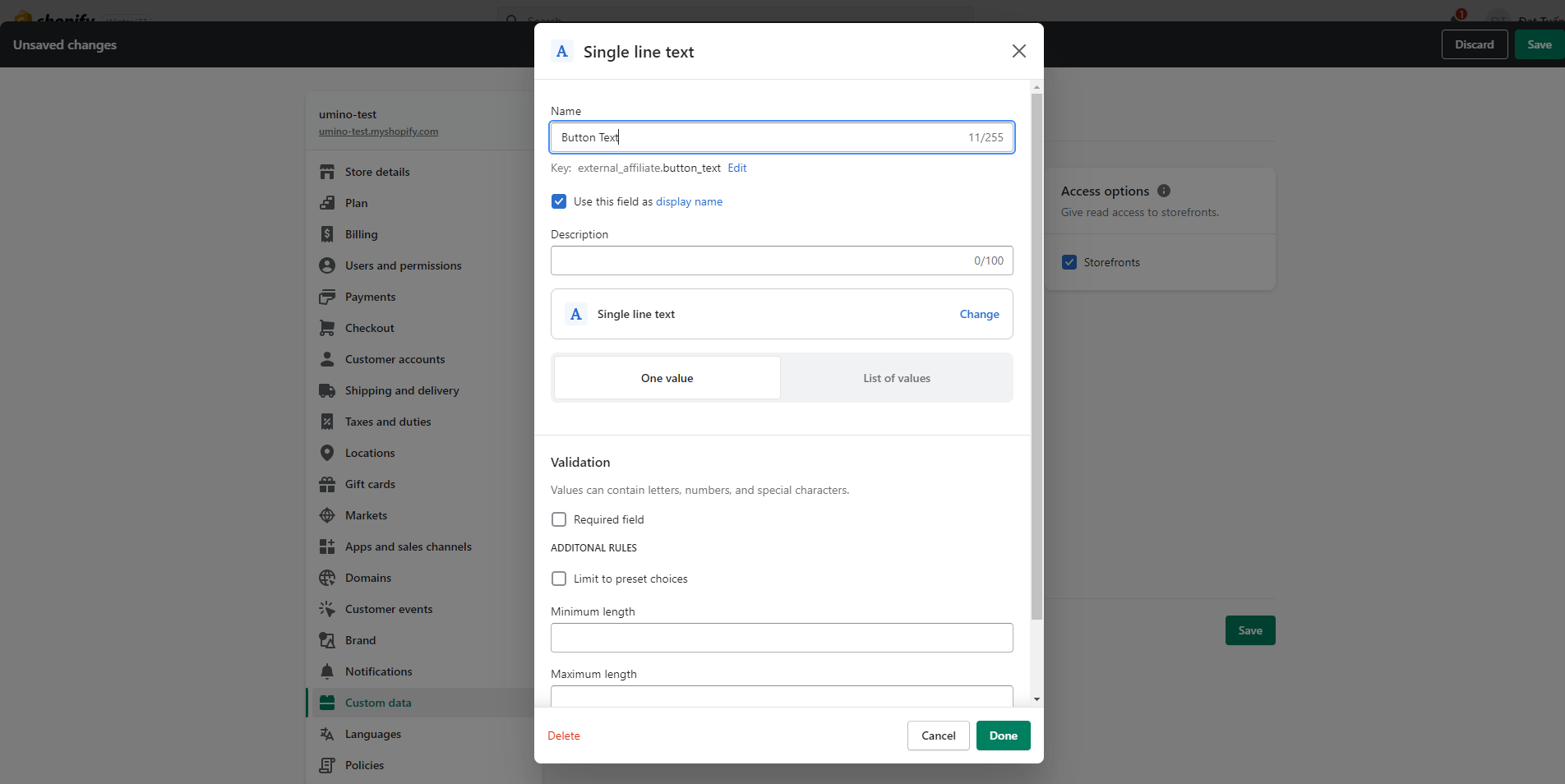
- Field 2:
- Type: Single line text
- Name: Button Text
- Field 1:
- Click Save
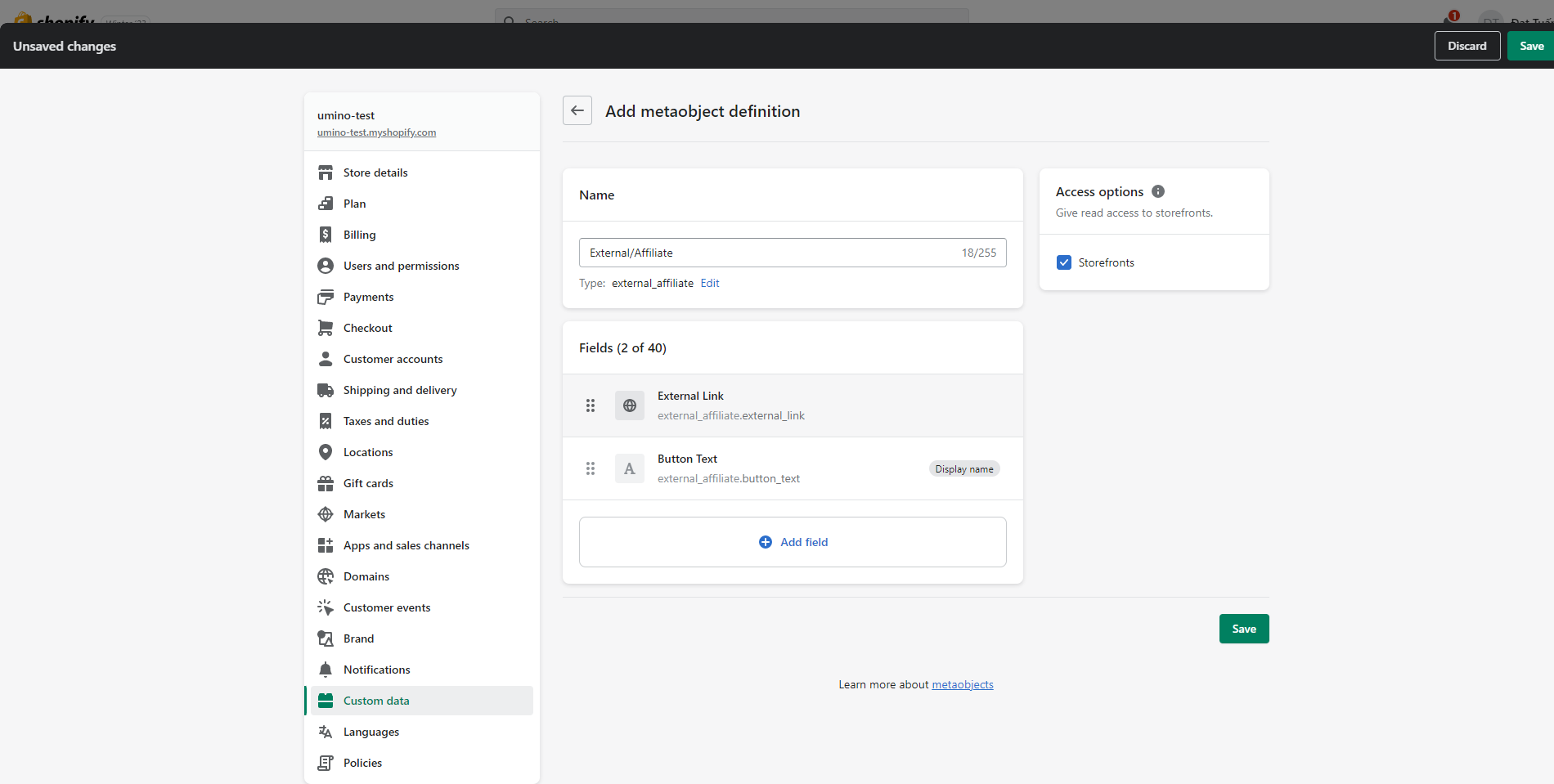
Step:
- Back to Custom data -> Metafields -> Products
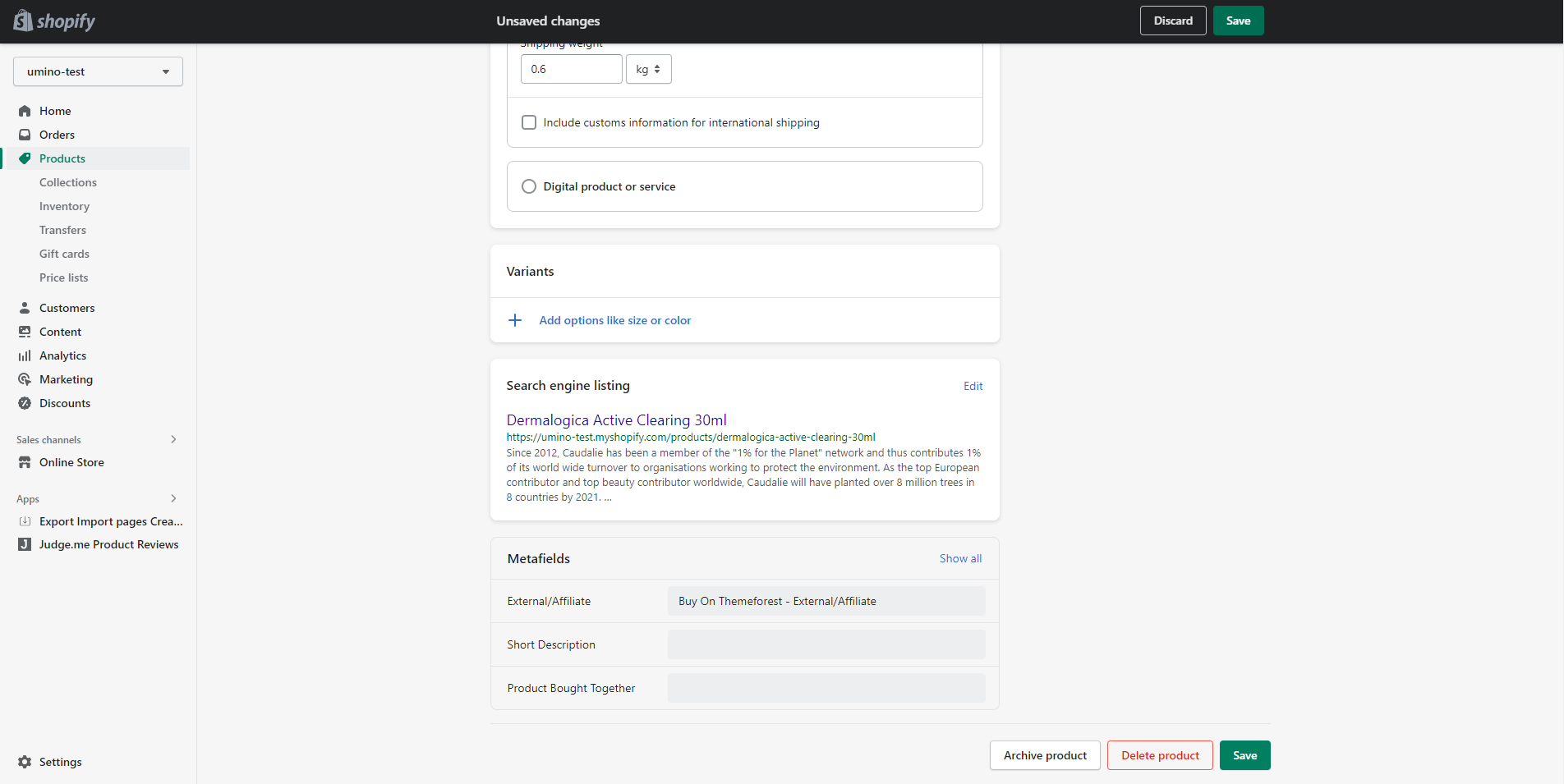
- Add a metafield as bellow:
**-** Name: **External/Affiliate**
- Type: **Mixed reference**
- Validation: **External/Affiliate**
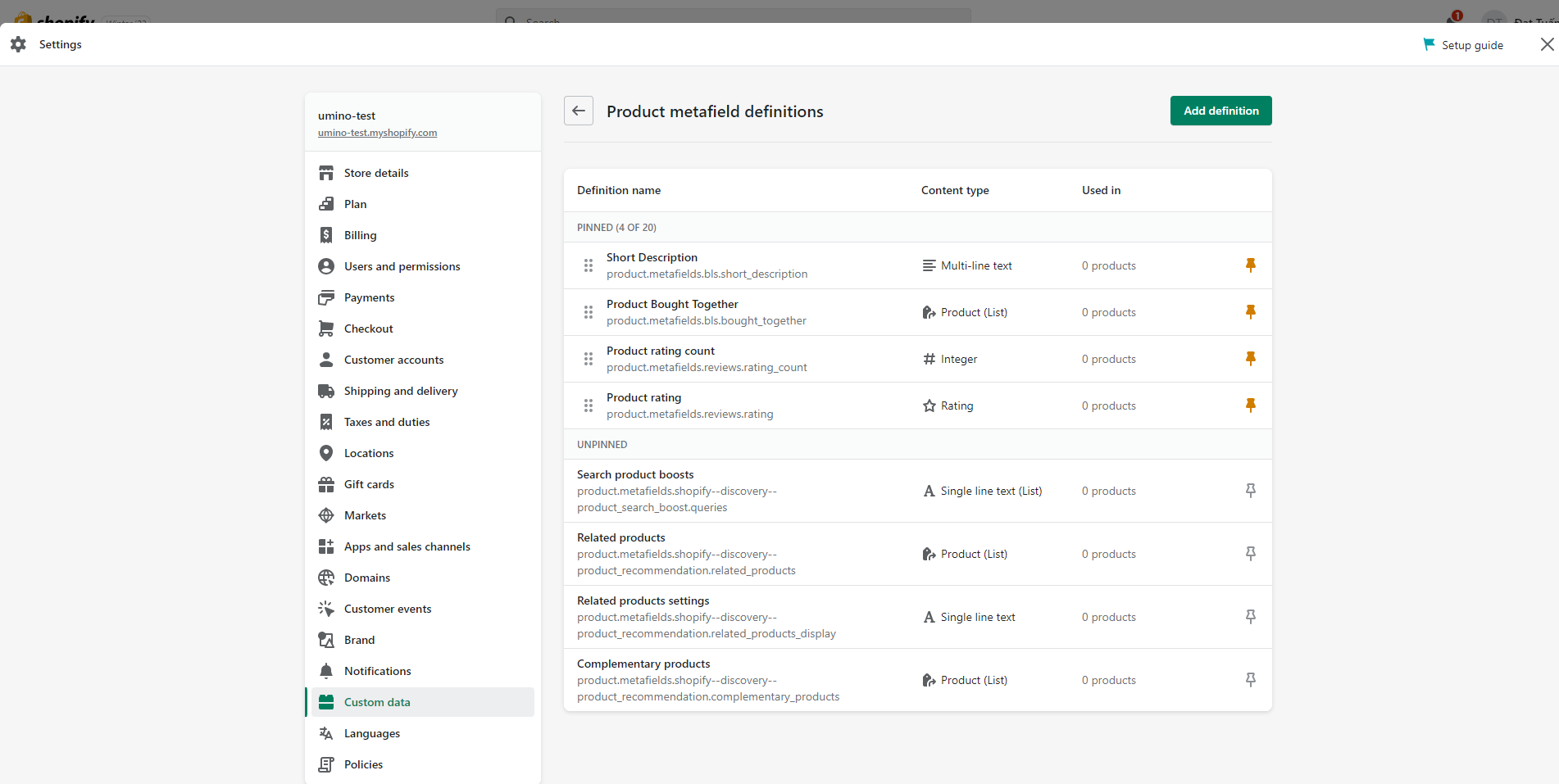
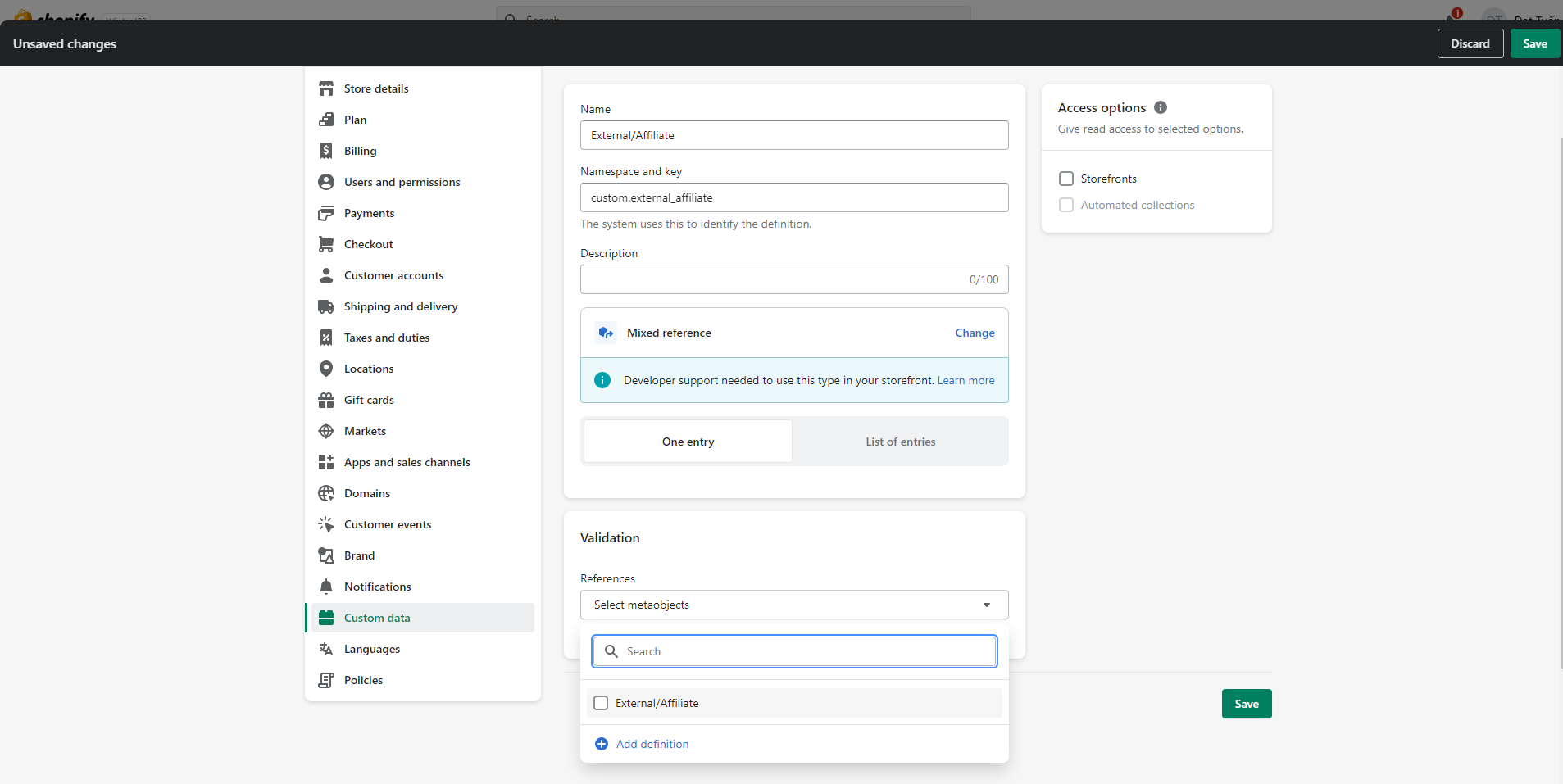
Step:
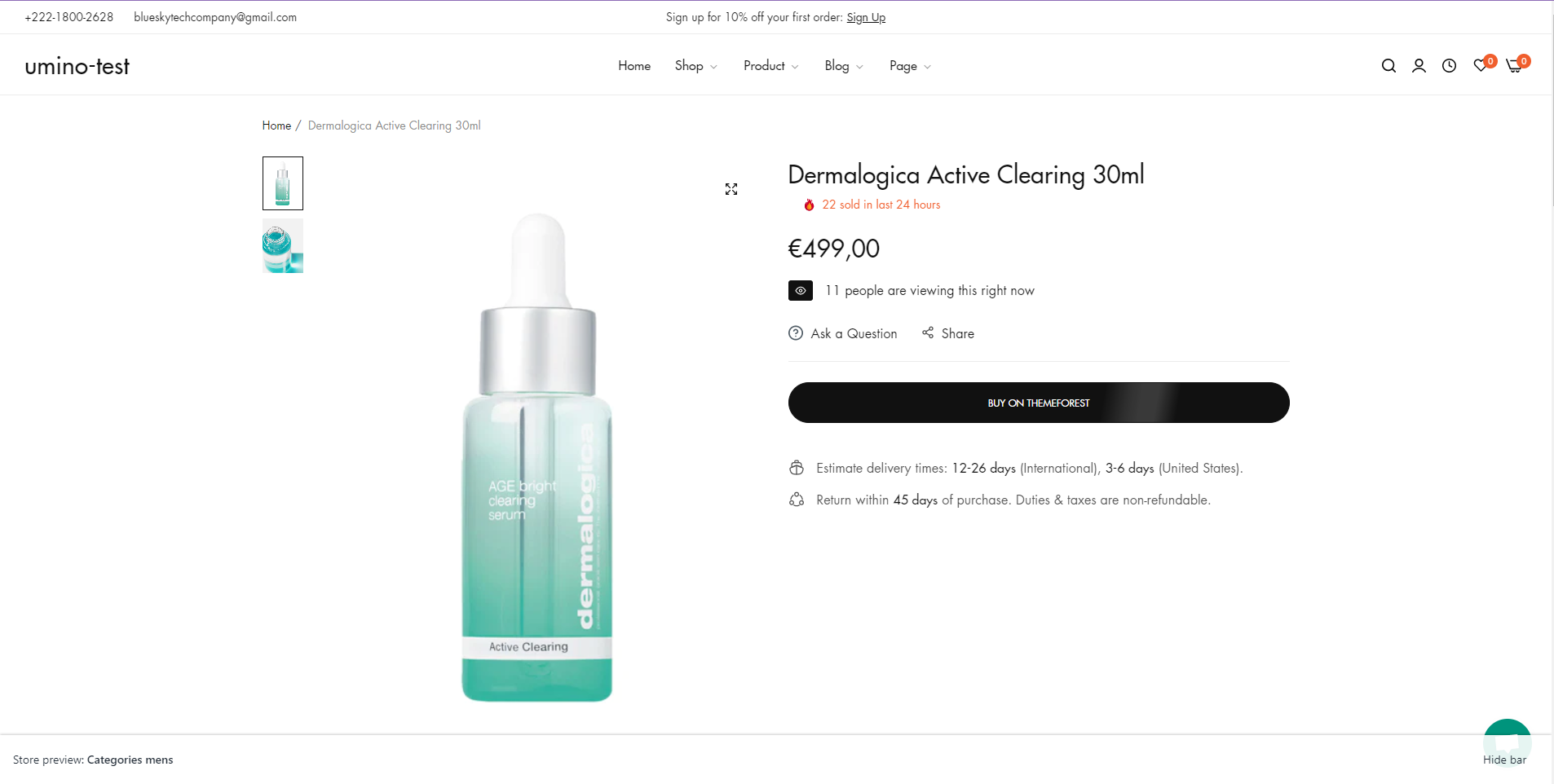
- Close Setting and setup metafield for a product.
.png)
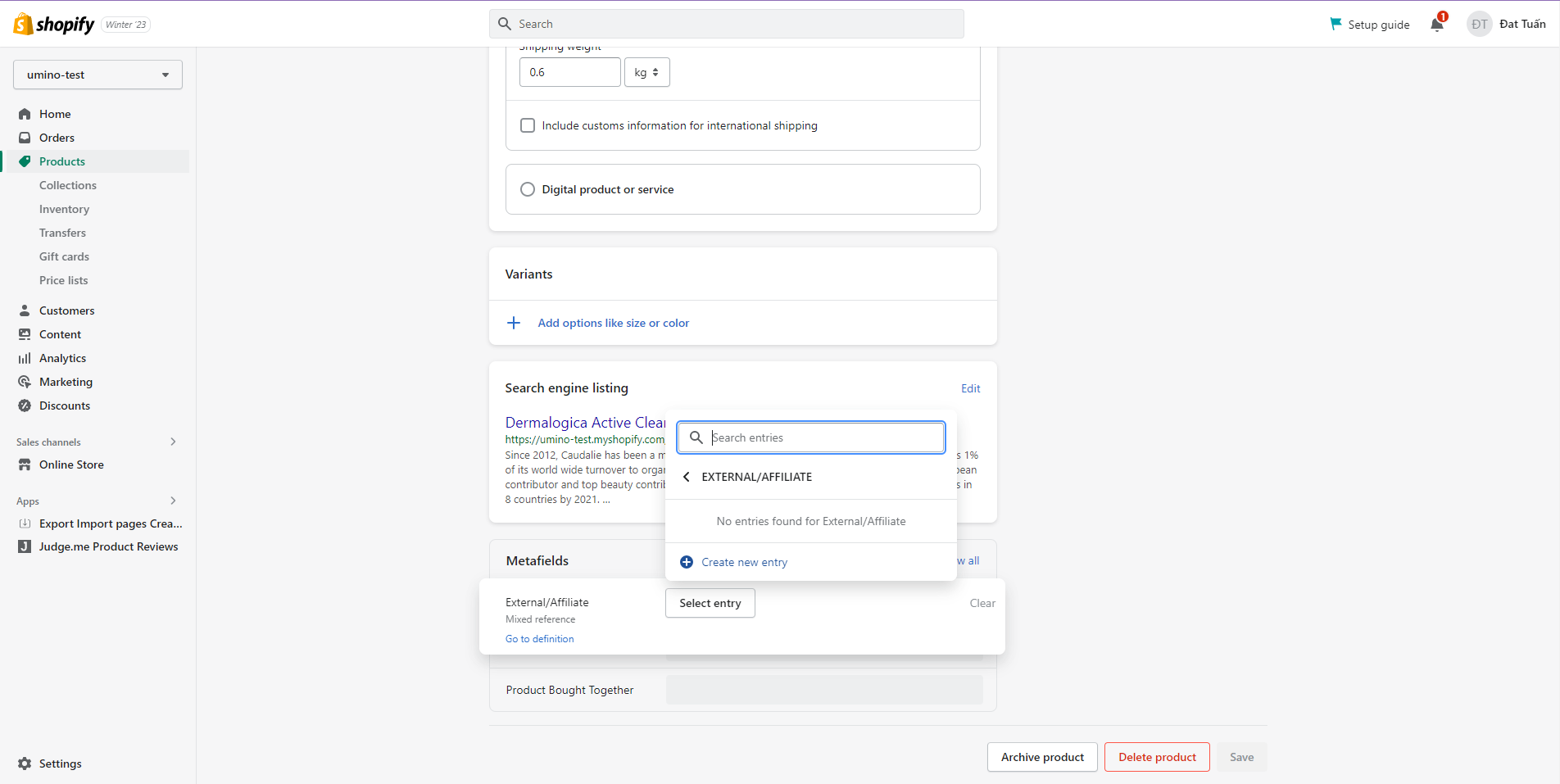
5. Product grouped
Step:
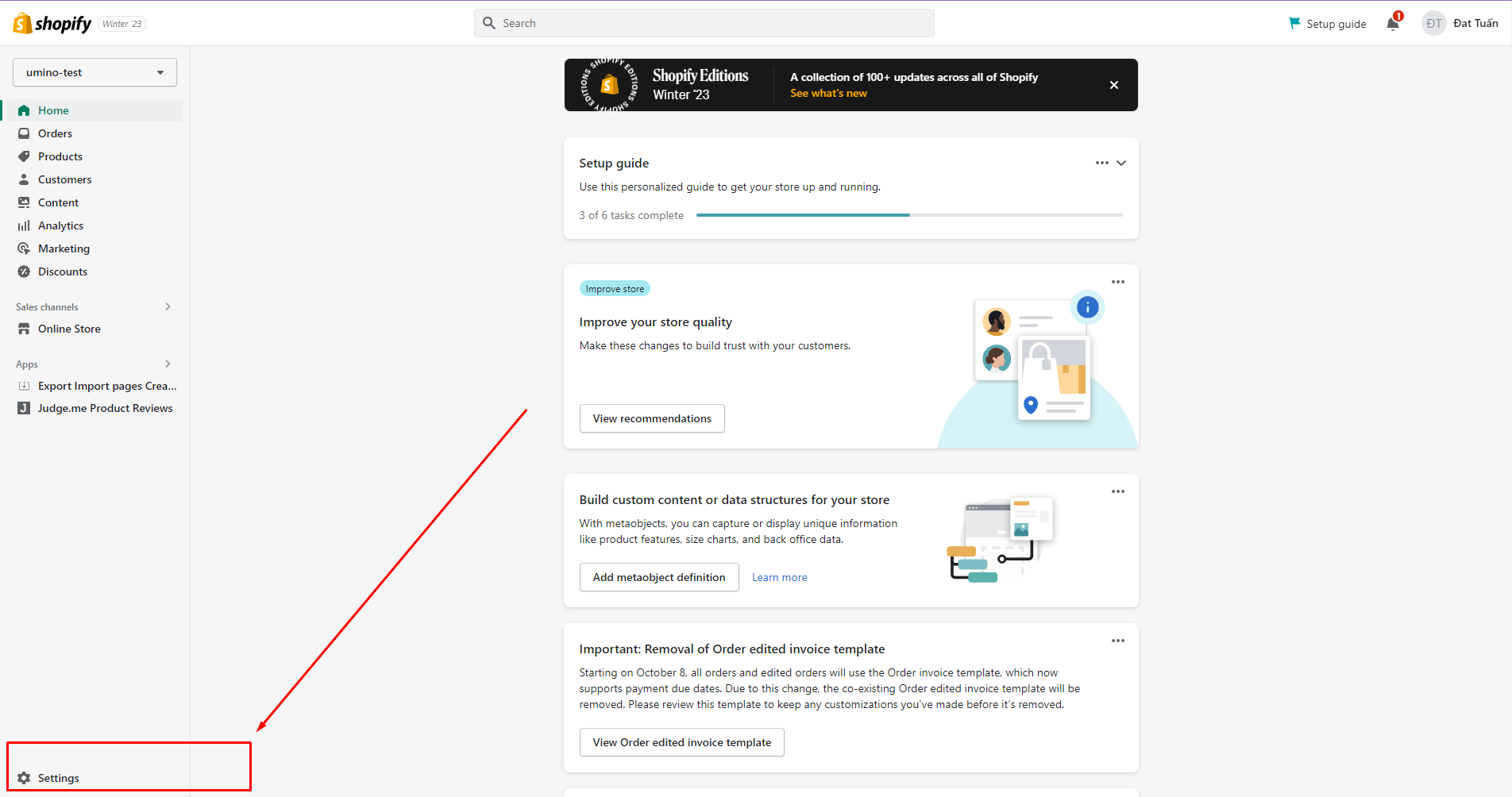
- Login to your Shopify store, click to Settings
- Click to Custom data and select Products
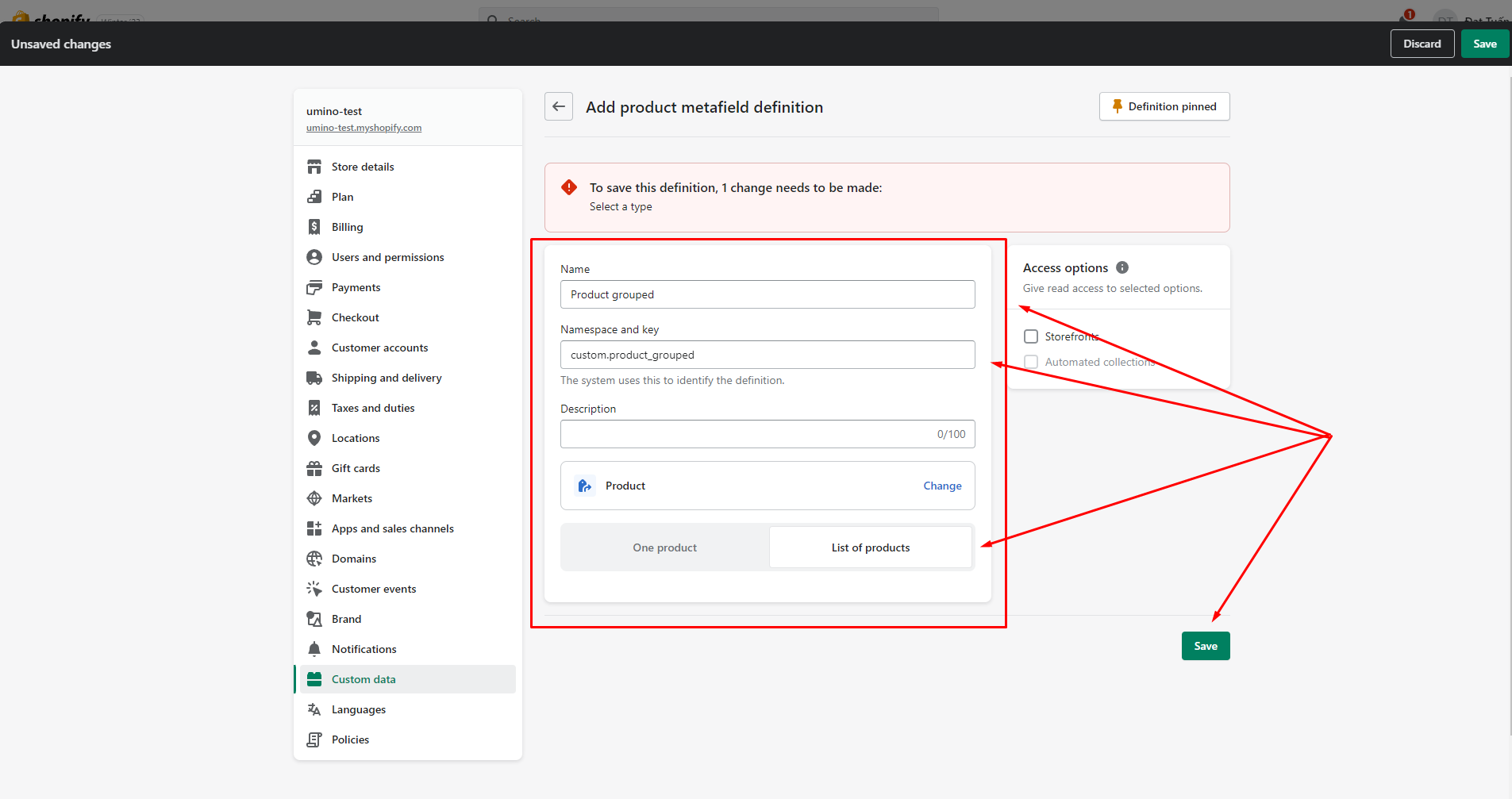
- Add metafields as bellow:
- Name: Product grouped
**-** Namespace and key: **bls.product_grouped**
- Content type: Product - List of products
- Click Save
6. Sub collection
Step:
- Login to your Shopify store, click to Settings
- Click to Custom data and select Collections
- Add metafields as bellow:
- Name: Sub Collections
**-** Namespace and key: **bls.sub_collections**
- Content type: Collection - List of collections
- Click Save
.png)
.png)
.png)
.png)
7. Product information tab
Step 1:
- Login to your Shopify store, click to Settings
- Click to Custom data --> Metaobjects and Click Add definition
- Add metaobject definition with 2 fields as bellow: - Name: Information product tab
- Field 1:
- Type: Multi-line text
- Name: Information Text
- Field 2:
- Type: Page
- Name: Information in page
- Field 1:
.png)
.png)
.png)
.png)
Step 2:
- Back to Custom data -> Metafields -> Products
- Add a metafield as bellow:
**-** Name: **Information product tab**
- Namespace and key: **bls.information_product_tab**
- Type: **Metaobject**
- Reference: **Information product tab**
- Setup metafield for a product and you can see the result.
.png)
- On Shopify homepage, go to Products and select the 'Information product tab' metafields to set the content you want to display for each product
.png)
.png)
Note:
- Fill in one of the two fields: Information Text or Information in page
- If you select the Information in page field, you can refer to the table we have created here.
8. Custom product badge
Step
- Login to your Shopify store, click to Settings
- Click to Custom data and select Products
- Add metafields as bellow:
- Name: Custom product badge
**-** Namespace and key: **bls.custom_product_badge**
- Content type: Single line text
- Click Save
.png)
.png)
.png)
Please follow this video for more information.
No comments yet