

Collection list
The collection list displays a quick list of desired collections to catch visitors' attention.
Steps
- In the theme editor (Customize), click Add section
- Locate Collection list
- Save
Collection list settings
1. Section header and general:
Use the provided text fields to add a suitable heading/subheading/description. Leave any of them blank if you do not want to display them.
Adjust the text alignment (left/center/right) along with the background color and container type.
.png)
Layout: You can choose among Container, Wrapped container, Full width for the banner layout.
Color schema: Set text color and background color with preset scheme
.png)
2. Collection settings
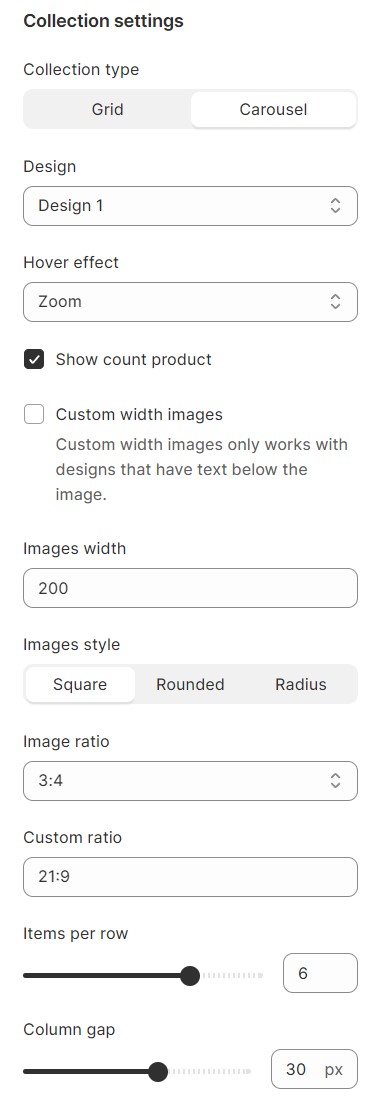
Collection type: Grid, Carousel
Items per row: Determine the number of collections shown per row and the gap between columns.
Column gap: Determine the space between 2 items
Design:
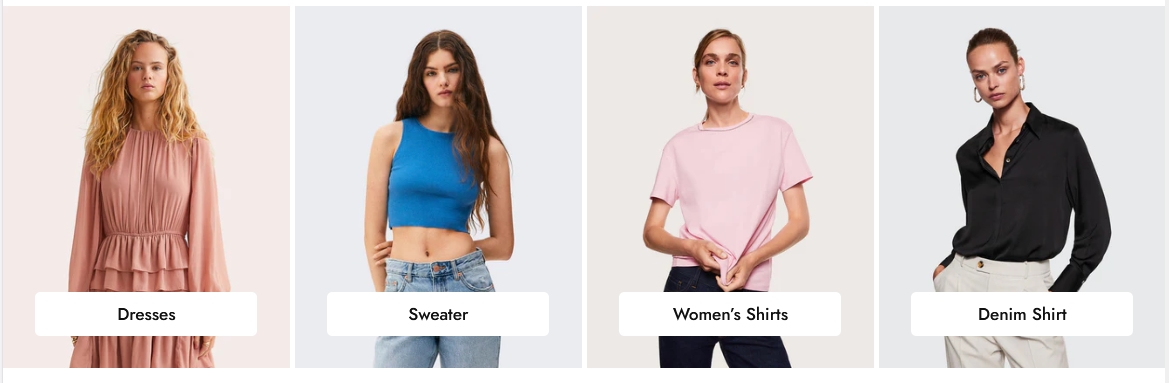

3. Typography
Collection names and product counts' fonts can be separately set up to match the look of your website.
.png)
4. Settings for carousel
- Autoplay: run the carousel automatically
- Infinity: Extend the carousel period indefinitely.
- Show arrows: enable "To left - To right" buttons
- Dot: enable or disable buttons that navigate you to one specific slide directly
.png)
5. Section padding
Section padding allows you to specify the space between the slideshow and the preceding or following sections, or both.
.png)
No comments yet