

Product information
This article guides you through the process of adding, editing, or removing information on your product pages. Providing accurate, reliable, and comprehensive product details empowers customers to make informed purchasing choices.
How to add a Product information section?
Steps
- In the theme editor (Customize), open the template selector.
- Select Products, then Default product.
- On the left-sidebar, add Product information.
- Make necessary changes > Save.
How to customize your Product information section
.png)
General Settings
.png)
| Setting | Description |
|---|---|
| Section width | Controls the width behavior of the section container: |
| Color scheme | Select a color scheme from Theme settings → Colors. |
| Enable sticky add cart on desktop | Keeps the Add to Cart button visible while scrolling on desktop for easier access. |
Media
Learn more about media types.
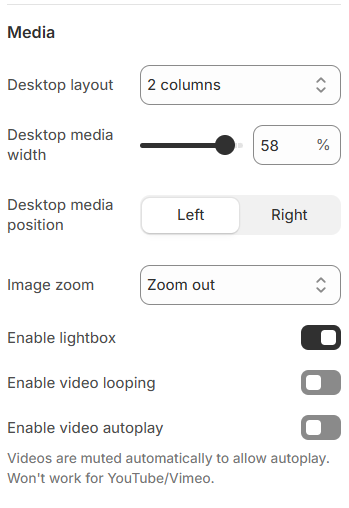
| Setting | Description |
|---|---|
| Desktop layout | 3 options for desktop layout
.png)
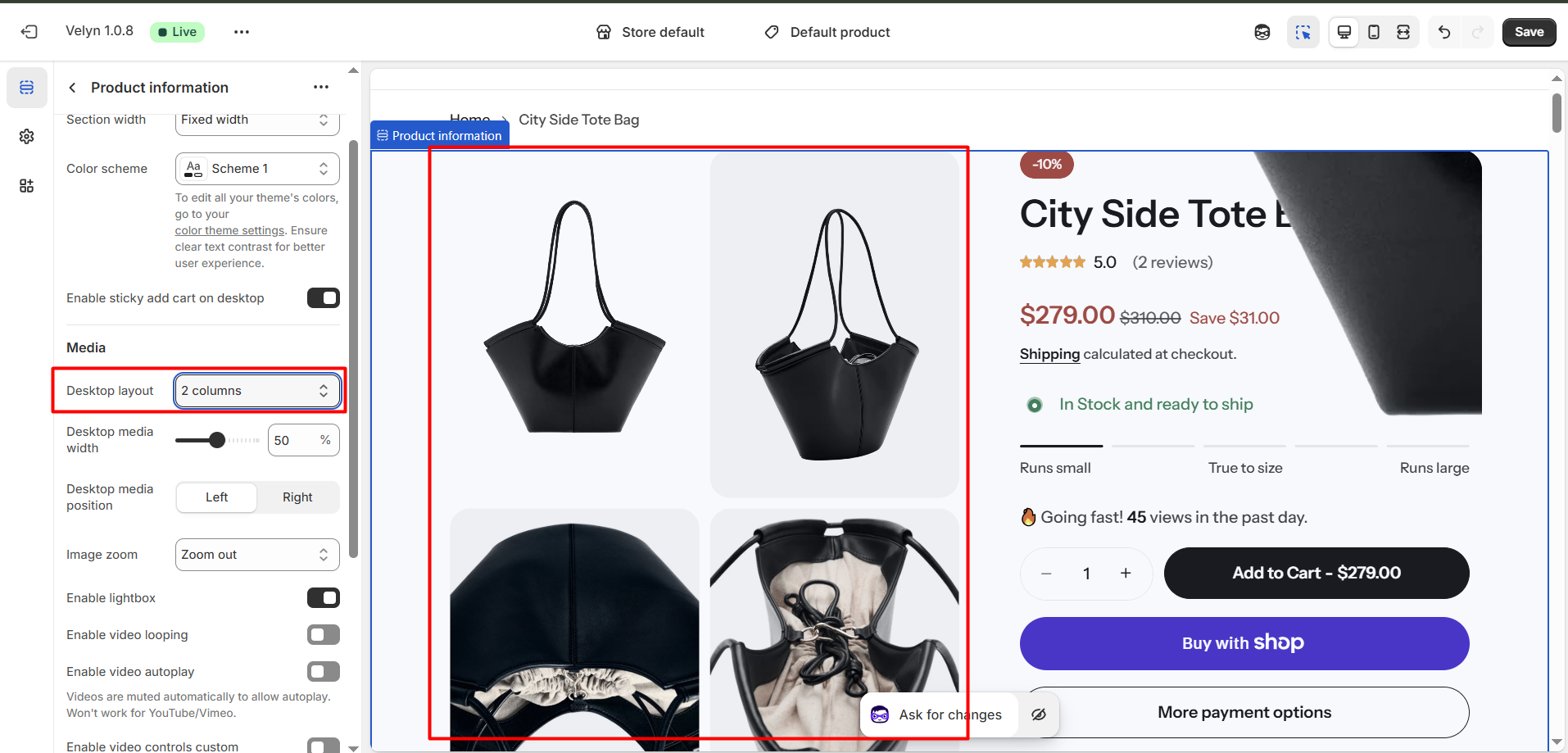
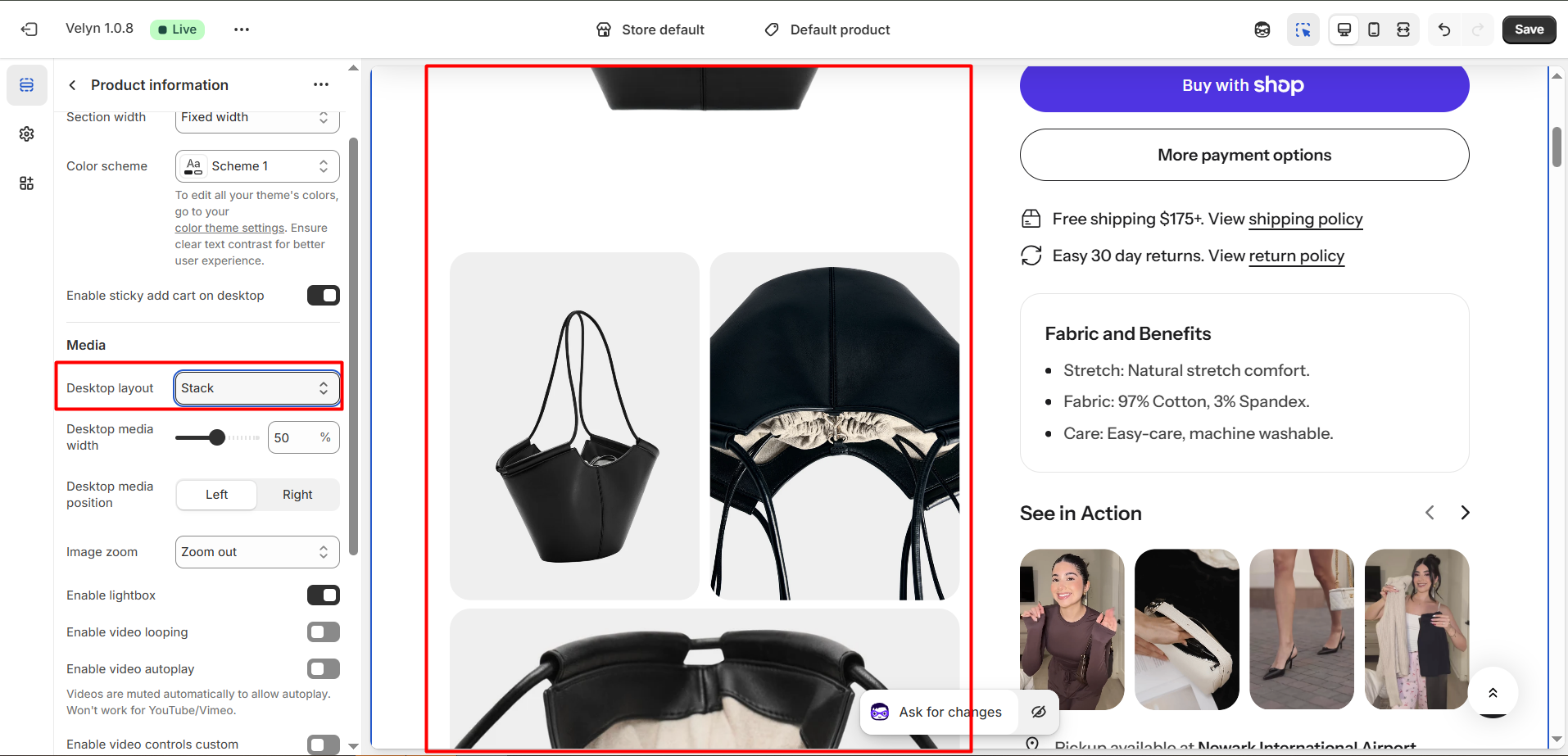
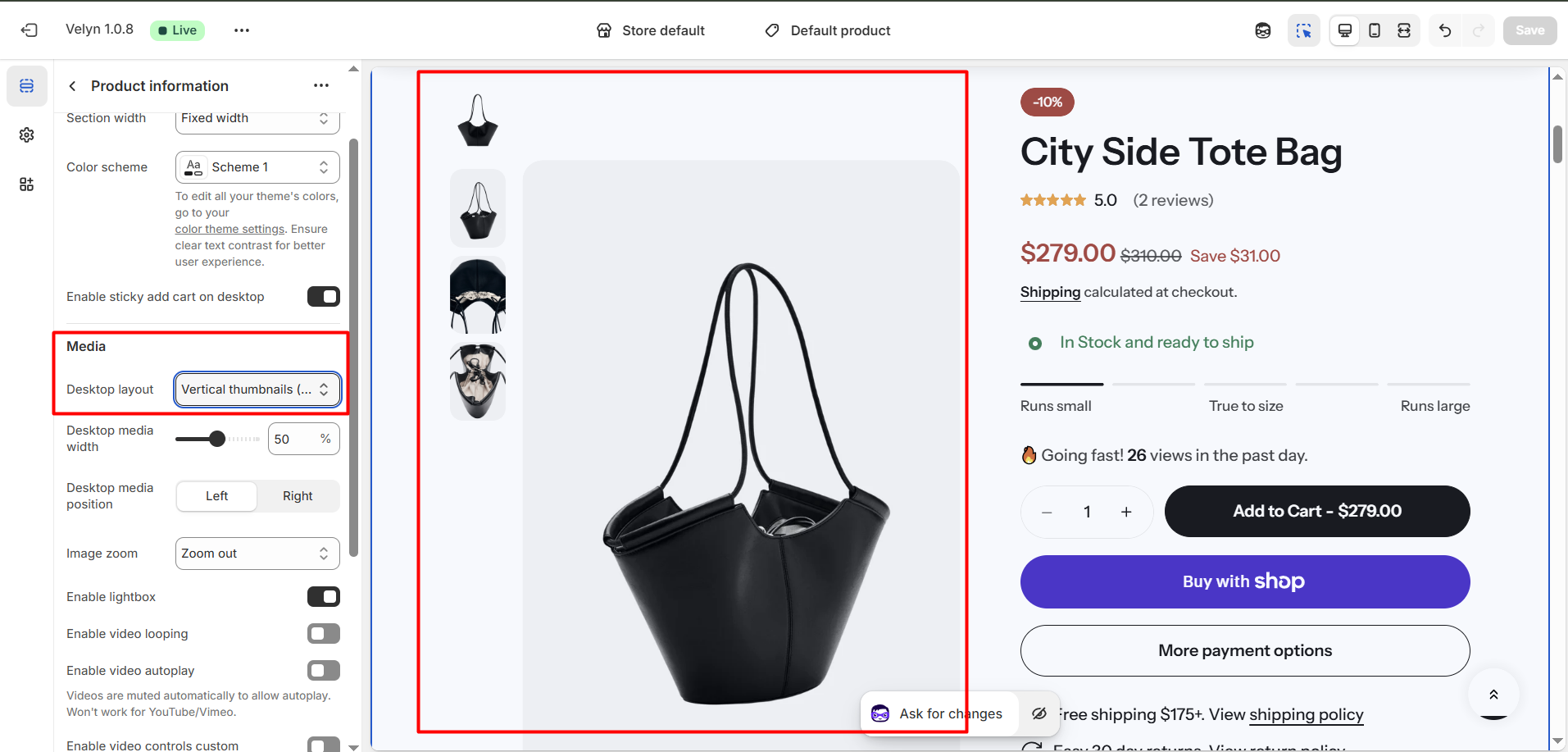
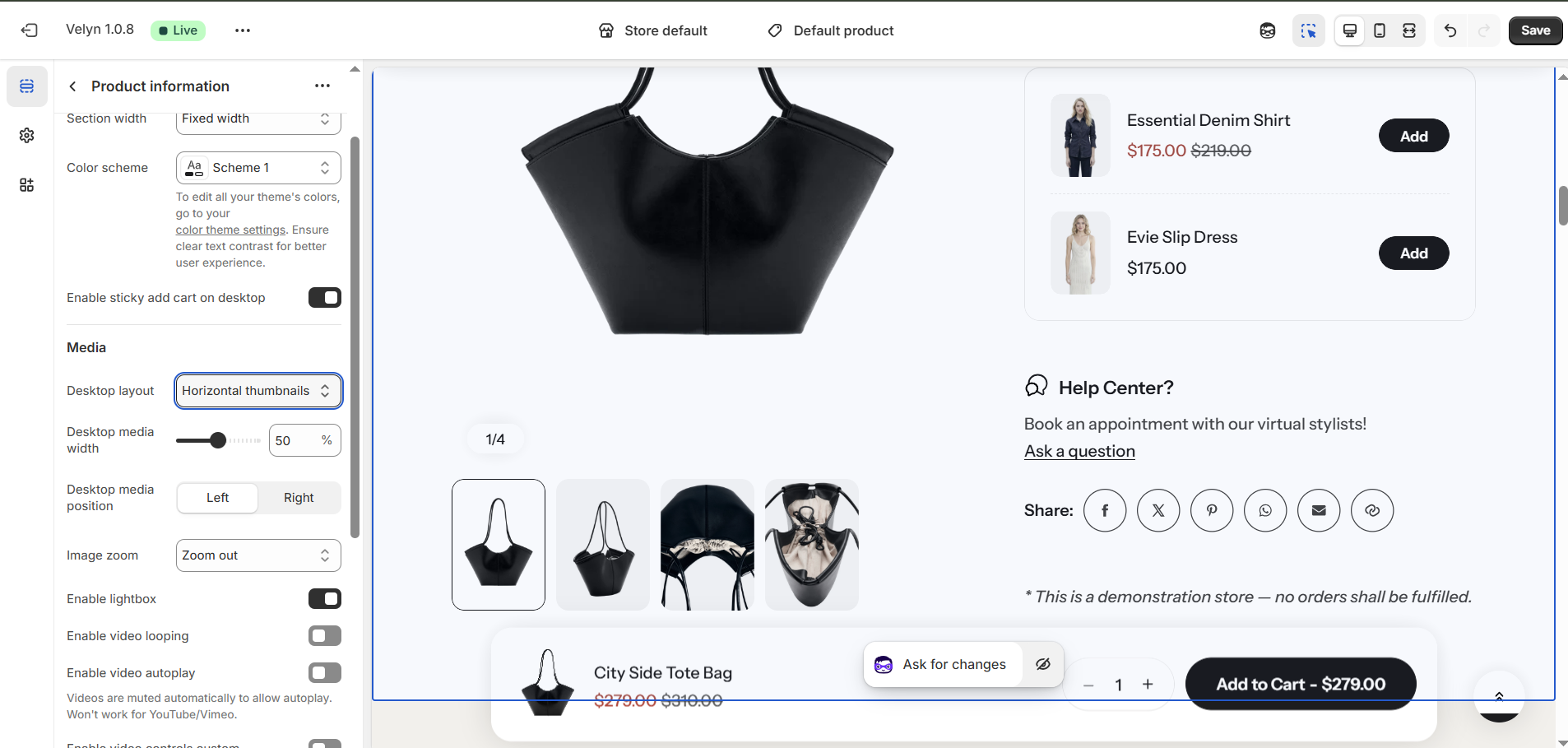
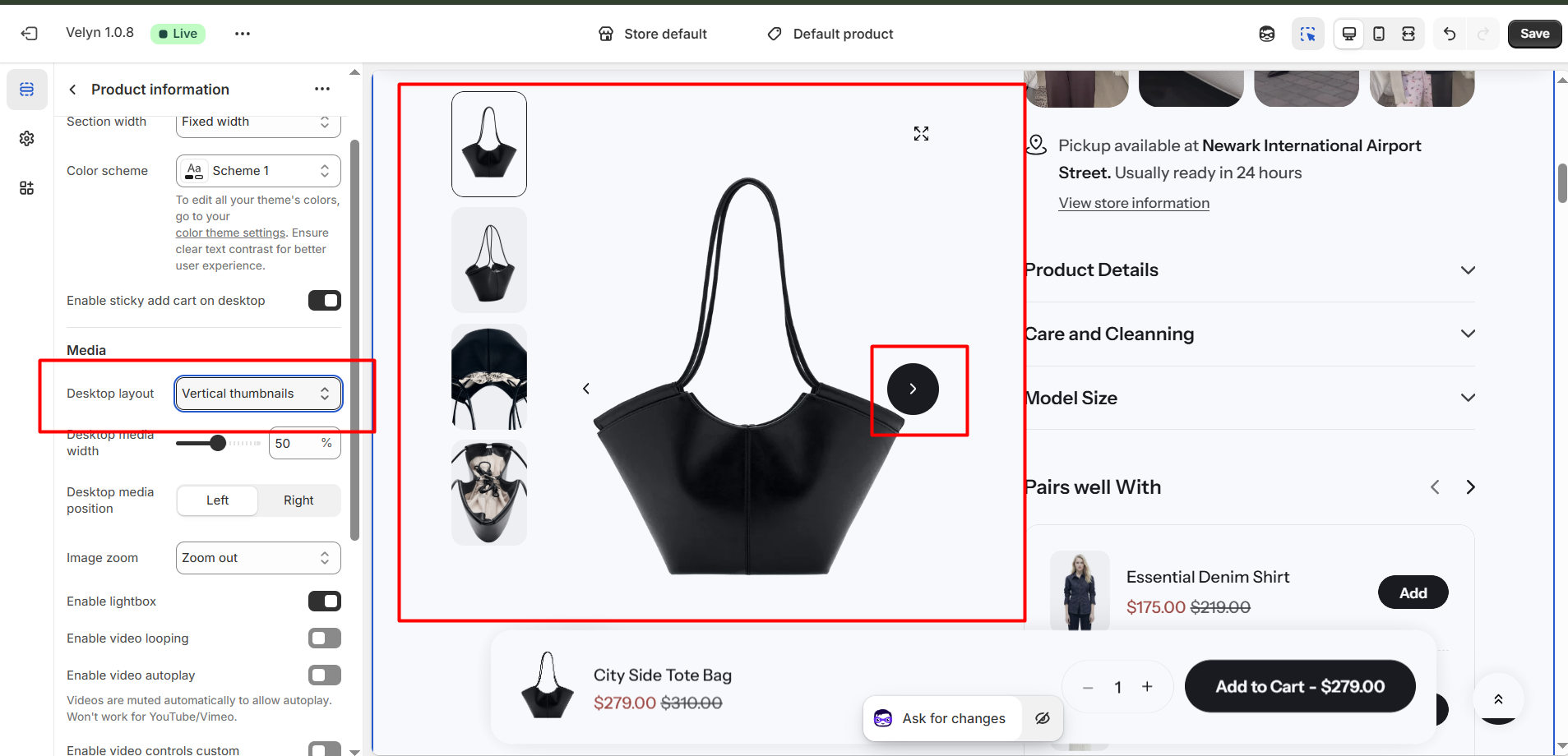 |
| Desktop media width | Adjusts the width of the product media (images or videos) on desktop *Note: Media is automatically optimized for mobile. |
| Desktop media position | 2 options for desktop media position
*Note: Position is automatically optimized for mobile. |
| Enable image zoom | Allows customers to zoom in on product images for a closer view when hovering or clicking, depending on the theme behavior. |
| Enable video looping | When enabled, the video will loop if the product has a video |
| Enable video autoplay | When enabled, the video will autoplay if the product has a video *Note: Videos are muted automatically to allow autoplay. Won't work for YouTube/Vimeo. |
Section padding
.png)
| Setting | Description |
|---|---|
| Top | Customize the top margin of the section. |
| Bottom | Customize the bottom margin of the section. |
Block settings
We provide plenty of useful components for you to customize your own template:
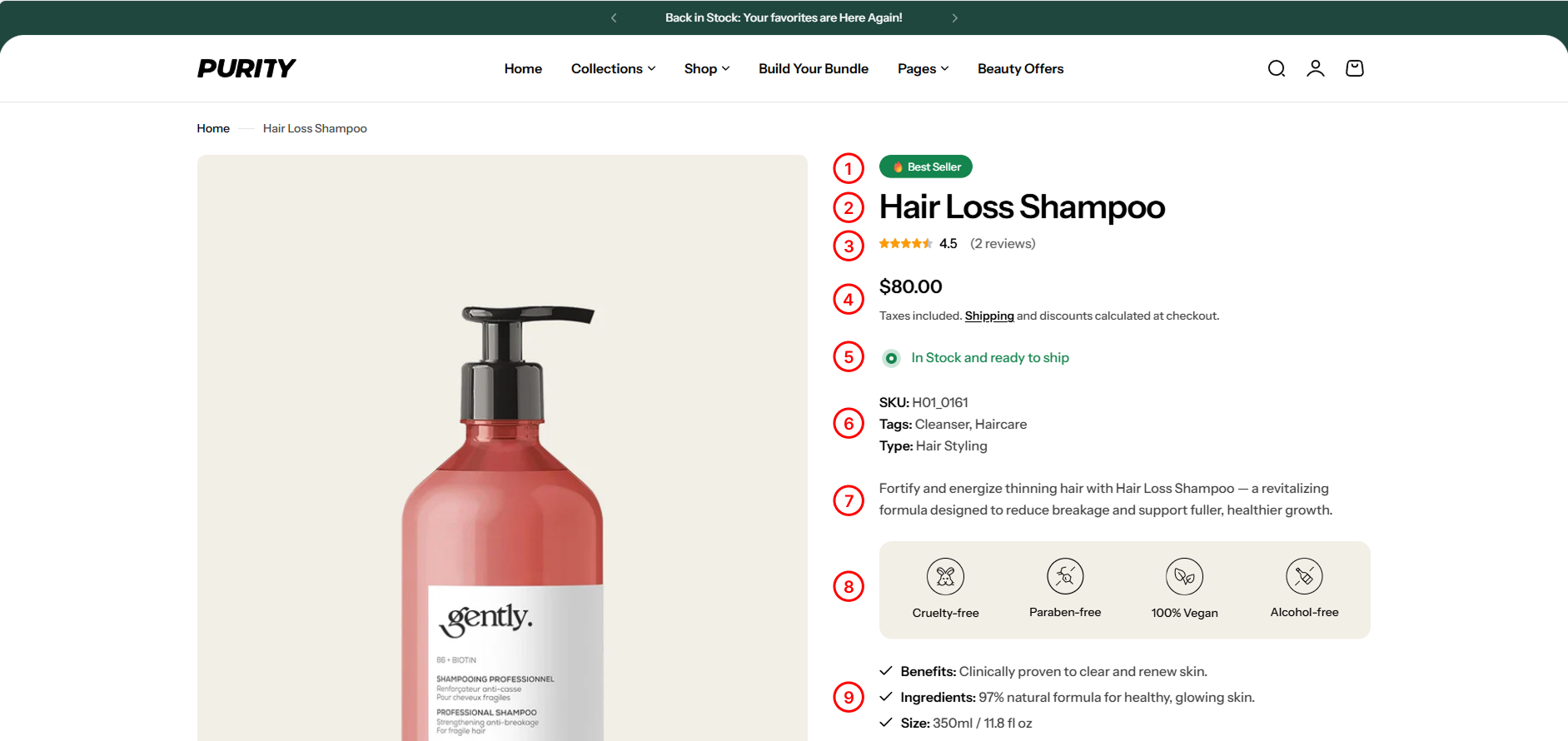
1. Badge
Displays product tags. To learn more about badge and how to add it to your store, visit the following [link](../../../theme-installation/create-required-metafields/#id-1.-custom-product-badge).
2. Product Title
Display product title.
3. Product rating
Display the product's rating.
4. Price
Display product price.
5. Inventory status
**Inventory status** signifies the availability of a product. It's vital for ensuring products are in stock, managing inventory efficiently, and informing customers about availability on your website.
.png)
| Setting | Description |
|---|---|
| Low inventory threshold | Sets the number of remaining items that triggers a “Low stock” alert. |
| Inventory base quantity | Defines the starting stock quantity used to correctly display the inventory progress bar. |
6. Product meta
Show/hide collections, SKU, product type, and product tags.
.png)
7. Description
Detailed product description. To learn more about description and how to add it to your store, visit the following [link](../../../theme-installation/create-required-metafields/#id-7.-short-description).
8. Highlights
Show key product benefits using icons and short labels. To learn more about highlights and how to add them to your store, visit the following [link](../../../theme-installation/create-required-metafields/#id-3.-ingredient-highlights).
9. Key features
List the key benefits of the product. To learn more about key features and how to add them to your store, visit the following [link](../../../theme-installation/create-required-metafields/#id-2.-key-features).
10. Promotion alert
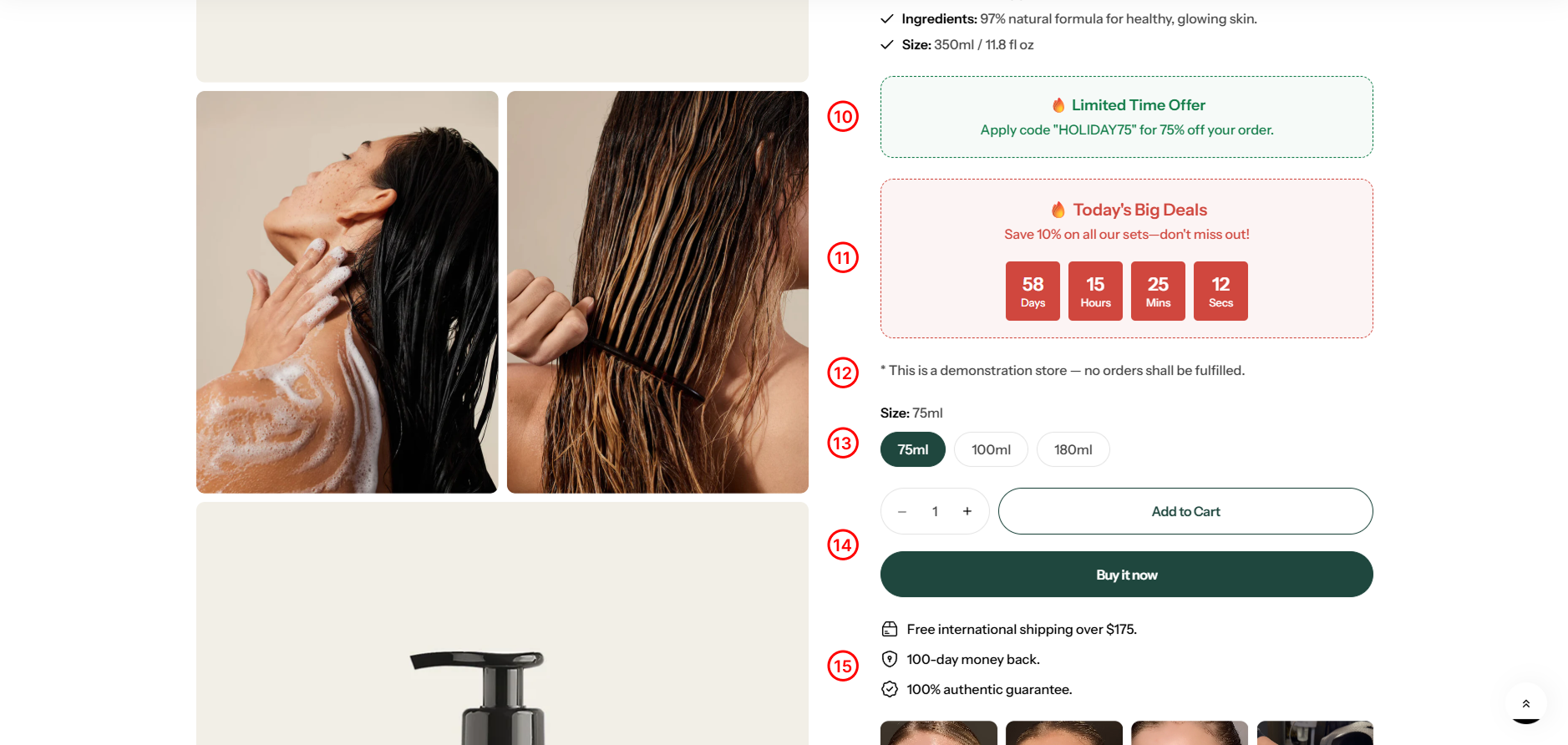
Displays promotional messages (e.g., 🔥 Limited Time). Fill in the settings:
.png)
11. Promotion countdown
Display the promotion countdown.
You need to create a metafield before displaying this block. Please see how to create a metafield [here](../../../theme-installation/create-required-metafields/).
.png)
12. Text
Add the custom content you want.
13. Variant picker
Products with variants provide customers with more choices. To learn more about variants and how to add them to your store, visit the following [link](https://help.shopify.com/en/manual/products/variants).
.png)
.png)
| Setting | Description |
|---|---|
| Type | Defines the display style for variant options: Pills or Dropdown. |
| Show size chart | Displays the size chart for the product. |
| Show size recommendation | Displays a modal where users can enter information to receive size suggestions. |
| Size trigger | Defines labels used for size options. Multiple values can be separated by commas. |
| Size chart label | Sets the title text for the size chart. |
| Size chart page | Selects the page that contains the size chart content. |
| Footer content | Adds custom text or links in the product section footer for additional information (e.g., support, notices). |
| Custom size chart | Enables product/collection-specific size charts using a metafield ( |
14. Buy buttons
.png)
| Setting | Description |
|---|---|
| Show dynamic checkout buttons | Toggles dynamic checkout buttons, adding a direct checkout option alongside the standard Add to Cart button. |
| Show recipient information form for gift card | Enables a form for gift card products where users can schedule delivery and add personal messages. Learn more |
| External/Affiliate button (instruction) | Allows replacing the Add to Cart button with an External/Affiliate button by following the provided setup instructions. here |
15. Icon with text
Use this block to show a small icon with a short message — like free shipping, secure checkout, or money-back guarantee.
.png)
| Setting | Description |
|---|---|
| SVG Icon | Select an icon to display. |
| Text | Enter a short text label. |
16. Media lightbox
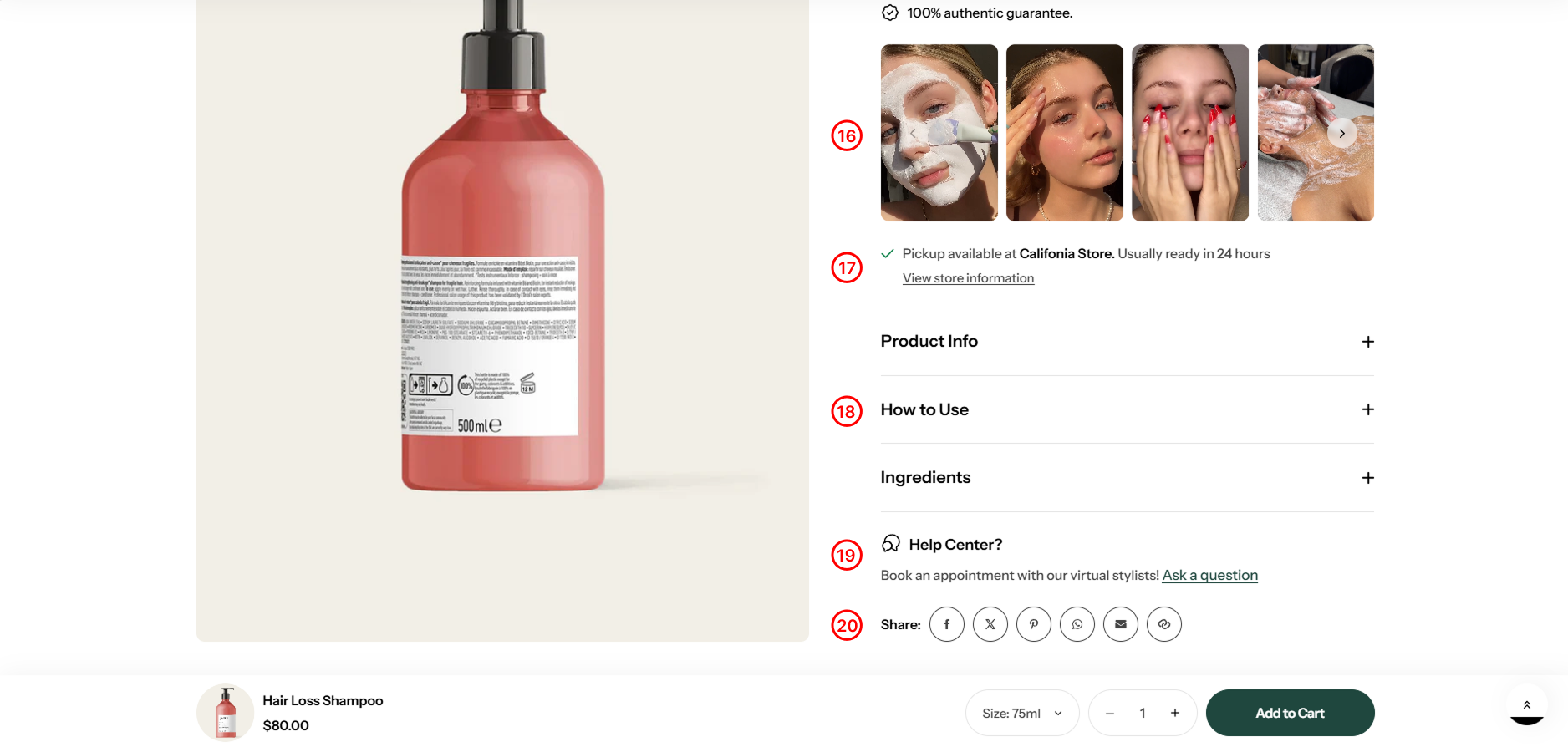
Display images or videos in a carousel. To learn more about media lightbox and how to add it to your store, visit the following [link](../../../theme-installation/create-required-metafields/#id-2.-media-lightbox).
.png)
| Setting | Description |
|---|---|
| Items per row on desktop | Sets the number of items displayed per row on desktop devices. |
| Show navigation | Enables arrow controls to navigate between items. |
| Show pagination | Displays pagination dots indicating item positions. |
17. Pickup availability
Show customers if a product is available for local pickup at a nearby store or location.
18. Collapsible row
Add a heading and extra information on the tabs.
.png)
| Setting | Description |
|---|---|
| Heading | Adds a heading that describes or introduces the content. |
| Row content | Displays manually entered content for the row. |
| Row content from page | Pulls and displays content from a selected page. |
19. Ask a question
Display a form for users to submit questions to the seller about the product.
.png)
20. Share
Display social networks for sharing or copying links to share.
21. Complementary products
To select complementary products, add the Search & Discovery app. [Learn more](https://help.shopify.com/manual/online-store/search-and-discovery/product-recommendations)
.png)
You need to create a metafield before displaying this block. Please see how to create a metafield [here](../../../theme-installation/create-required-metafields/#id-6.-promotion-countdown).
.png)
22. Model size
.png)
You need to create a metafield before displaying this block. Please see how to create a metafield
23. Product sizing
.png)
Helps customers understand how the product fits and choose the right size with confidence., visit the following link .
No comments yet