

Product bundle
.png)
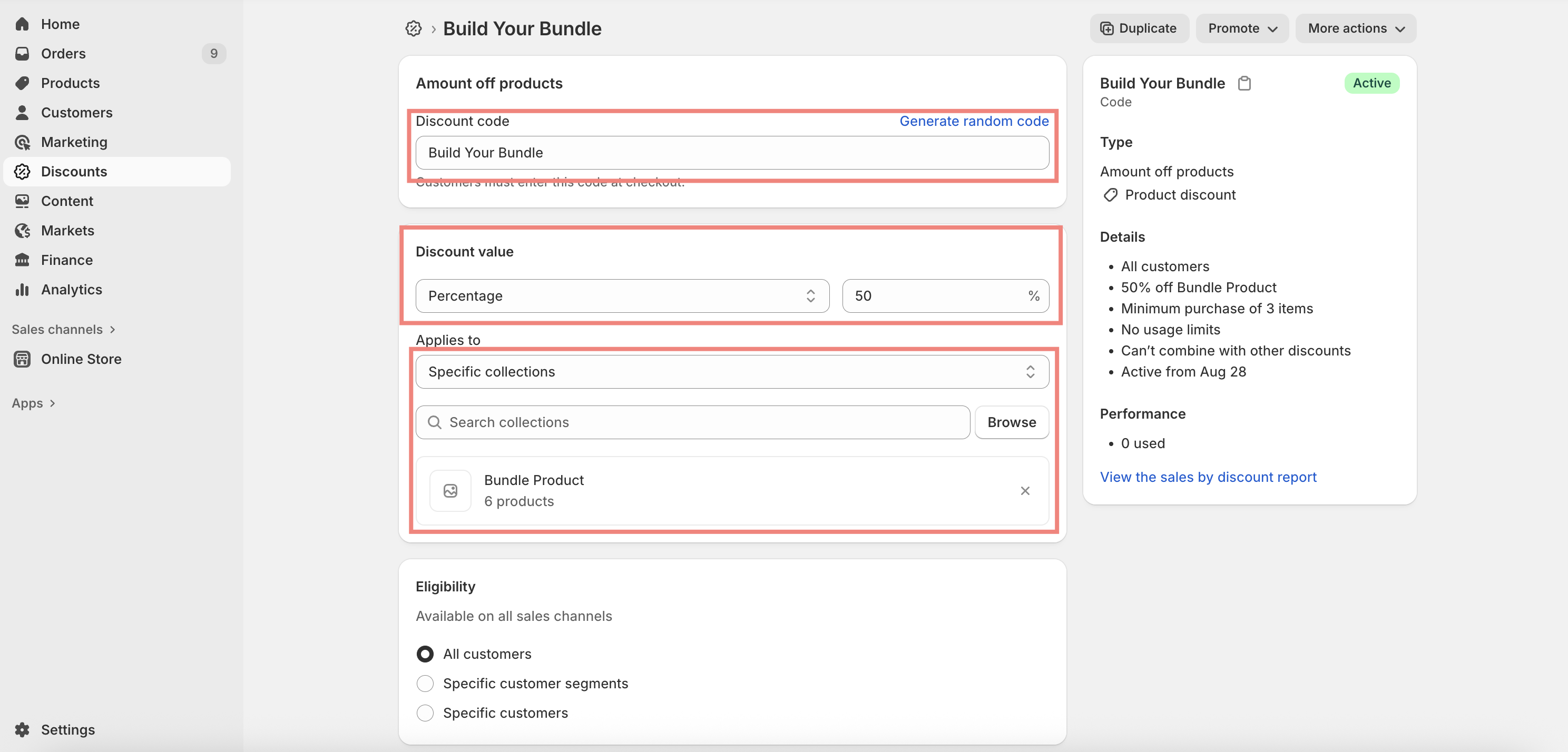
This feature inherits functionality from Shopify Discounts. Please create a discount in your Shopify admin before using it.\
Learn how to create discounts
Create a discount in your Shopify admin.
Go to Shopify Admin → Discounts → Create Discount and set up your discount details as the screenshot below.
Step 2: Configure this Section.
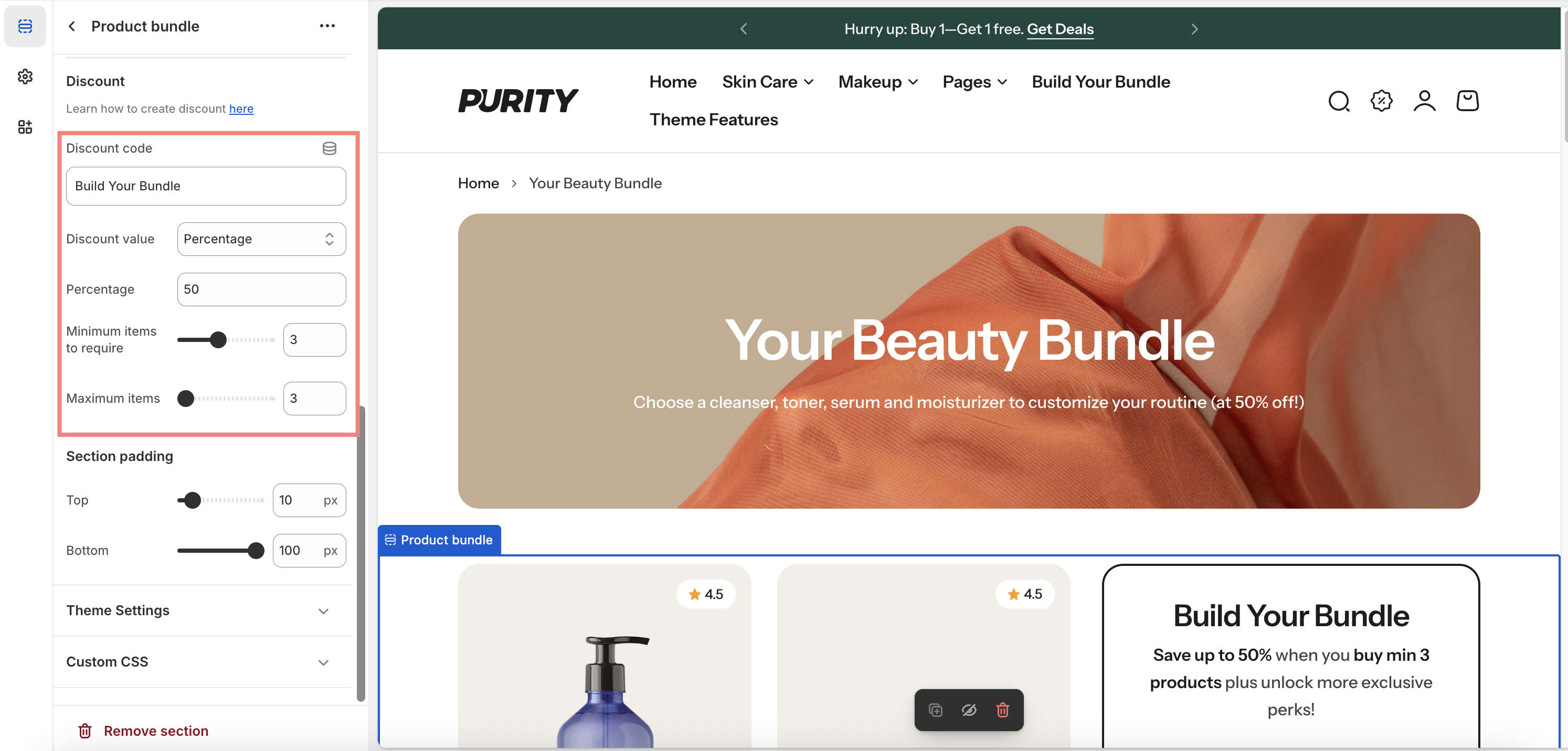
Open your theme editor, find this section, and setup as the screenshot below.
Please make sure your input matches the discount details you set up in Step 1.
Section settings
General settings
| Setting | Description |
|---|---|
| Section width | 3 options for container
|
| Color scheme | Select colors from Theme settings -> Colors |
| Subheading | The subheading of the section |
| Heading | The title of the section |
| Enable heading underline animation | Enable heading underline animation |
| Underline style | Select Underline style |
| Underline color | Customize Underline color |
| Description | The description of the section |
| Heading size | The size of the title:
|
| Alignment | The position of the heading and description.
|
Discount
| Setting | Description |
|---|---|
| Discount code | Customize Discount code |
| Discount value | Select Discount value |
| Minimum items to require | Determine the lowest number of product required for activating the discount. |
| Maximum items | Determine the highest number of product required for activating the discount. |
Section padding
| Setting | Description |
|---|---|
| Top | Customize the top margin of the section |
| Bottom | Customize the bottom margin of the section |
No comments yet